
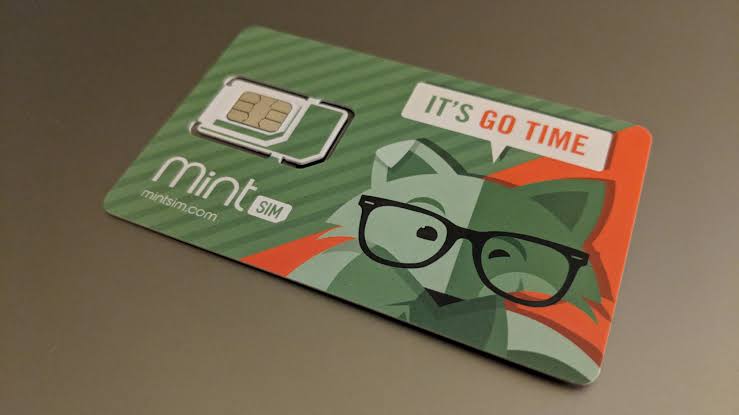
Setting up Mint Mobile on an iPhone is relatively straightforward, whether you’re bringing your existing iPhone to the service or switching to a new device. You can activate Mint using either a physical SIM card or eSIM, depending on your iPhone model and compatibility.
Before starting, make sure your iPhone is unlocked, compatible with Mint Mobile and connected to Wi-Fi. Mint recommends checking device compatibility before activating your plan.
Here’s a complete step-by-step guide to setting up Mint Mobile on an iPhone in 2026.
What You Need Before Setting Up Mint Mobile
Before beginning the activation process, keep these things ready:
- A compatible iPhone
- An unlocked iPhone
- A Mint Mobile plan
- A physical Mint SIM or compatible eSIM
- A reliable Wi-Fi connection
- Your Mint activation code
- Your current carrier account information if you’re transferring your number
- Your Number Transfer PIN, if required
Mint recommends updating your phone’s software before activation and keeping your existing service active until the activation and number transfer are complete.
Step 1: Check if Your iPhone Is Compatible
The first step is making sure your iPhone works with Mint Mobile.
Mint provides an online compatibility checker where you can check your phone using its model or IMEI number. On an iPhone, you can find the IMEI by going to:
Settings → General → About
Mint says its compatibility check is the best way to confirm whether a particular device will work with its network.
You can also dial:
*#06#
to display your device’s IMEI.
Step 2: Check Whether Your iPhone Is Unlocked
Your iPhone must be unlocked if you’re bringing it from another carrier.
To check:
Settings → General → About → Carrier Lock
You’ll see one of the following:
- No SIM restrictions — Your iPhone is unlocked.
- SIM locked — Your iPhone is still locked to a carrier.
Mint specifically recommends checking the Carrier Lock section before switching.
If your iPhone is locked, contact your current carrier and ask about its unlocking requirements.
Step 3: Update Your iPhone
Before activating Mint, update your iPhone to the latest available iOS version for your device.
Go to:
Settings → General → Software Update
Keeping your iPhone updated can help avoid compatibility and network-configuration problems during setup.
Mint’s current iPhone setup guidance supports modern iOS versions and says newer iPhones have Mint’s required settings pre-installed.
Step 4: Choose Between Physical SIM and eSIM
Mint Mobile supports both physical SIM cards and eSIM on compatible iPhones.
eSIM
An eSIM is a digital SIM built into your iPhone. It doesn’t require you to insert a physical card.
Mint says compatible customers can activate an eSIM through the Mint app or by scanning a QR code sent to their email.
Advantages include:
- Fast activation
- No physical SIM card
- No shipping required
- Convenient when switching immediately
- Ability to use Dual SIM on compatible iPhones
Physical SIM
If your iPhone doesn’t support Mint’s eSIM setup or you prefer a physical SIM, you can use a Mint SIM card.
You’ll need to insert the SIM into your iPhone before completing the activation process.
Step 5: Find Your Mint Activation Code
You’ll need your activation code to begin the setup.
If you purchased an eSIM, Mint says the activation code is sent to the email address used during checkout. Check your inbox, Spam or Junk folder if you can’t find it.
For a physical SIM, the activation code is printed on the SIM card included with your SIM kit.
Mint’s activation page uses an 11-digit ACT code for physical SIM activation.
Step 6: Download the Mint Mobile App
Connect your iPhone to Wi-Fi and download the Mint Mobile app.
The app can guide you through the activation process and help determine whether your iPhone supports eSIM.
Mint’s current activation instructions recommend using the app to activate both physical SIM and eSIM plans.
Step 7: Activate Your Mint Mobile Plan
Open the Mint Mobile app and select the option to activate your SIM.
If you’re using eSIM, the app will guide you through installing the eSIM profile.
If you’re using a physical SIM, you’ll need to enter the activation code from your SIM card.
Mint provides separate activation instructions for physical SIM and eSIM on iPhone.
Step 8: Decide Whether to Keep Your Existing Number
During activation, you’ll be asked whether you want to:
Keep your current number
or
Get a new number
If you want to keep your existing number, select the option to transfer it to Mint.
You’ll generally need:
- Your current phone number
- Billing ZIP code
- Current carrier
- Current carrier account number
- PIN or Number Transfer PIN
Mint says the exact transfer information can vary depending on your existing carrier.
Important: Don’t Cancel Your Old Service
If you’re transferring your existing number, don’t cancel your current carrier before the transfer is complete.
Mint specifically advises customers to wait until activation is finished so they don’t lose service during the process.
Step 9: Install Your Mint eSIM
If you’re using eSIM, follow the instructions shown in the Mint app.
Mint says eSIM activation can be completed through the app or by scanning the QR code provided in the activation email.
Once installed, your iPhone should display the Mint line under its cellular settings.
Go to:
Settings → Cellular
and confirm that your Mint line appears.
Step 10: Insert the Physical Mint SIM
If you’re using a physical SIM:
- Turn off your iPhone.
- Locate the SIM tray.
- Remove your existing SIM.
- Insert the Mint SIM.
- Turn your iPhone back on.
- Follow the activation instructions in the Mint app.
Once activated, the Mint line should appear under your cellular settings.
Step 11: Set Mint as Your Default Cellular Line
If you’re using Dual SIM, you can choose which line handles calls and mobile data.
Go to:
Settings → Cellular
You can then choose:
Default Voice Line → Mint
For mobile data:
Cellular Data → Mint
Mint also allows users with Dual SIM to select different default lines for calls and data.
This is particularly useful if you’re keeping your old number as a secondary line.
Step 12: Enable Cellular Data
After activating Mint, make sure cellular data is enabled.
Go to:
Settings → Cellular → Cellular Data
Select your Mint line if you have multiple SIMs.
Mint’s current iPhone setup documentation says modern iPhones automatically configure the necessary data and MMS settings.
Step 13: Turn On Wi-Fi Calling
Wi-Fi Calling lets you make calls and send texts over a Wi-Fi connection when cellular coverage is weak.
First, enable Wi-Fi Calling on your Mint account through the Mint app or online account. Mint requires an emergency 911 address as part of the setup.
Then on your iPhone:
Settings → Cellular → Mint → Wi-Fi Calling → Turn On
If prompted, enter your emergency 911 address.
Wi-Fi Calling can be particularly useful inside buildings or areas with weak cellular coverage.
Step 14: Test Your Mint Service
After activation, test all the important features.
Make a Phone Call
Call another phone to verify that outgoing calls work.
Receive a Call
Ask someone to call your number.
Send an SMS
Send a text message and verify that it arrives successfully.
Test Mobile Data
Turn off Wi-Fi and open a website or app to check your cellular data.
Check 5G
If your iPhone and location support 5G, check the status indicator near the top of the screen.
Test Voicemail
Call your number and make sure voicemail is working correctly.
What If Mobile Data Doesn’t Work?
If calls and texts work but mobile data doesn’t, first check:
Settings → Cellular → Cellular Data
Make sure your Mint line is selected.
Also verify that Cellular Data is turned on.
Restart your iPhone and test again.
Mint says modern iPhones generally have the necessary settings pre-installed, so manual APN configuration is normally unnecessary on current iOS versions.
What If Your iPhone Says “No Service”?
If your iPhone displays No Service, try these steps:
- Confirm your Mint activation is complete.
- Restart the iPhone.
- Turn Airplane Mode on and off.
- Check that the Mint line is enabled.
- Confirm your device is compatible.
- Check Mint coverage in your location.
- Install any available carrier settings update.
- Contact Mint support if the problem continues.
Mint notes that actual coverage can be affected by factors including terrain, buildings, weather and other conditions.
What If Your Number Transfer Is Taking Too Long?
Number transfers can sometimes take longer when information supplied during activation doesn’t match your current carrier’s records.
Double-check:
- Account number
- Number Transfer PIN
- Billing ZIP code
- Current carrier
- Phone number
Don’t cancel your old service while the transfer is still being processed.
Mint recommends having your current carrier’s account and transfer information ready before beginning activation.
Can You Use Mint and Another Carrier on the Same iPhone?
Yes, compatible Dual SIM iPhones can use two lines.
For example, you could have:
- Mint as your personal number
- Another carrier as a work number
You can choose which line handles calls and which one provides cellular data.
Mint’s iOS settings allow you to select separate default lines for voice and cellular data. ([Mint Mobile][7])
Can You Use Mint eSIM With an iPhone?
Yes, provided the iPhone is compatible and unlocked.
Mint says its eSIM service allows customers to activate their plan within minutes through the app or by scanning a QR code.
eSIM can be especially useful if you’re switching carriers without wanting to wait for a physical SIM card.
Does Mint Mobile Support Apple Watch Cellular?
Mint currently says it does not support the cellular features of Apple Watch or other wearables. You can still use an Apple Watch with an iPhone through Bluetooth and Wi-Fi.
This is worth knowing if cellular Apple Watch support is important to you.
How to Set Up Mint on an Older iPhone
Older iPhones may require different configuration steps depending on the iOS version.
Mint’s current documentation says iOS 13 and later devices have the necessary settings pre-installed. Older versions may require additional configuration.
If you’re using an older iPhone, updating to a supported iOS version where possible is the simplest approach.
Common Mistakes to Avoid
Cancelling Your Old Carrier Too Soon
Wait until your Mint activation and number transfer are complete.
Forgetting to Unlock Your iPhone
A carrier-locked iPhone won’t necessarily work with Mint.
Skipping the Compatibility Check
An unlocked phone still needs to be compatible with Mint’s network.
Activating Before You’re Ready
Have your account and transfer information available before starting the activation.
Forgetting Wi-Fi Calling
If you frequently use your phone in areas with weak cellular coverage, enabling Wi-Fi Calling can be useful.
Selecting the Wrong Default Line
Dual-SIM users should check which line is selected for calls and cellular data.
Mint Mobile iPhone Setup Checklist
Before considering the setup complete, make sure:
- [ ] iPhone is unlocked
- [ ] iPhone is compatible
- [ ] iOS is updated
- [ ] Mint plan is purchased
- [ ] Activation code is available
- [ ] SIM/eSIM is installed
- [ ] Number transfer is complete
- [ ] Mint is selected as the cellular line
- [ ] Calls work
- [ ] Text messages work
- [ ] Mobile data works
- [ ] 5G works where available
- [ ] Voicemail works
- [ ] Wi-Fi Calling is enabled if needed
Final Verdict
Setting up Mint Mobile on an iPhone in 2026 is generally a straightforward process. The key is to prepare your device before starting the activation.
First, make sure your iPhone is compatible and unlocked. Then choose between a physical SIM and eSIM, activate your plan through the Mint app, transfer your existing number if needed and configure your cellular settings.
Once activation is complete, test calls, texts, mobile data and voicemail. If you’re using Dual SIM, also make sure Mint is selected as the correct default line.
For most modern iPhones, Mint’s network settings are configured automatically, so you shouldn’t need to manually enter APN information.
