
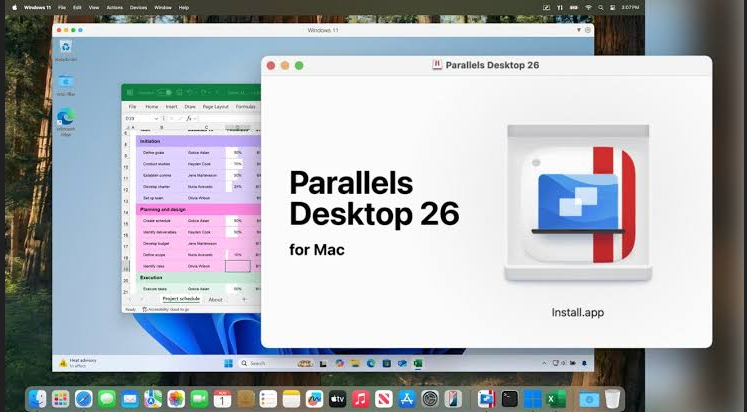
Running Windows applications on a Mac used to be complicated. Today, virtualization software has made it incredibly easy, and Parallels Desktop remains one of the most popular solutions available.
Whether you’re a developer, student, business professional, gamer, or designer, Parallels allows you to run Windows, Linux, and other operating systems alongside macOS without rebooting your computer.
In this guide, we’ll explore everything you need to know about Parallels Desktop, including its features, pricing, performance, advantages, disadvantages, and whether it’s worth buying in 2026.
What Is Parallels?
Parallels Desktop is virtualization software developed by Parallels that allows Mac users to install and run Windows, Linux, ChromeOS Flex, and other operating systems inside macOS.
Instead of restarting your Mac every time you need Windows, Parallels lets both operating systems work simultaneously.
You can:
- Run Windows and macOS together
- Open Windows applications like normal Mac apps
- Share files instantly
- Copy and paste between systems
- Use one keyboard and mouse for everything
This makes it one of the easiest virtualization tools for Apple computers.
Key Features
1. Run Windows Without Restarting
Parallels allows users to launch Windows inside a virtual machine while continuing to use macOS normally.
No reboot required.
2. One-Click Windows Installation
Installing Windows has become incredibly simple.
Parallels can automatically download and install Windows 11 in just a few clicks.
No technical knowledge is required.
3. Optimized for Apple Silicon
Parallels is fully optimized for:
- Apple M1
- Apple M2
- Apple M3
- Apple M4 chips
It delivers excellent performance while maintaining battery efficiency.
4. Coherence Mode
One of the most popular features.
Instead of viewing the full Windows desktop, Coherence Mode lets Windows applications appear like native Mac apps.
For example:
- Microsoft Excel
- Microsoft Word
- Visual Studio
- Power BI
can all run directly from the macOS Dock.
5. High Performance
- Fast boot times
- SSD optimization
- Dynamic memory allocation
- Multi-core CPU support
- GPU acceleration
Performance is excellent even for demanding software.
6. File Sharing
Move files between Windows and Mac instantly.
You can:
- Drag and drop files
- Share folders
- Copy and paste images
- Share clipboard
- Access Mac documents from Windows
7. Gaming Support
Although not designed specifically for gaming, Parallels supports many Windows games through DirectX compatibility.
Performance depends on:
- Mac hardware
- RAM
- Graphics requirements
Casual and older games generally perform well.
8. Snapshot and Backup
Snapshots allow users to save the current state of a virtual machine.
If something goes wrong after installing software or updates, you can restore the previous snapshot in minutes.
Main Benefits
Parallels offers several advantages:
- Easy installation
- Beginner-friendly interface
- Excellent Mac integration
- High-speed virtualization
- Secure virtual machines
- Automatic updates
- USB device support
- External monitor support
- Retina display optimization
System Requirements
Minimum requirements include:
- macOS Monterey or later
- Apple Silicon or Intel Mac
- 8 GB RAM (16 GB recommended)
- 600 MB installation space
- Additional storage for Windows virtual machine
For professional workloads:
- 16 GB–32 GB RAM
- SSD storage
- Apple M-series processor
is recommended.
Performance
Parallels is widely recognized as one of the fastest virtualization platforms available for macOS.
It performs exceptionally well for:
- Microsoft Office
- Visual Studio Code
- Adobe applications
- Accounting software
- Business applications
- Development tools
- Browsers
- SQL databases
Developers can even run Docker, Linux, and Windows simultaneously.
Security Features
Parallels includes various security capabilities:
- Virtual machine isolation
- TPM support for Windows 11
- Secure Boot
- Encryption
- Password protection
- Snapshot recovery
- Automatic backup integration
These features help protect business and personal data.
Pricing
Parallels Desktop is available through both annual subscriptions and perpetual licenses (availability may vary by edition).
Common editions include:
- Standard Edition
- Pro Edition
- Business Edition
The Pro edition is recommended for developers, testers, and IT professionals who require more virtual CPUs, RAM allocation, and advanced networking features.
Pros
- Extremely easy to install
- Excellent performance
- Optimized for Apple Silicon
- Great integration with macOS
- Supports Windows 11
- Fast file sharing
- Reliable updates
- Suitable for beginners
- Excellent productivity features
- Stable virtual machines
Cons
- Subscription can be expensive
- Gaming performance is limited compared to native Windows PCs
- Heavy virtual machines require more RAM
- Some Windows ARM compatibility limitations still exist
Who Should Use Parallels?
Parallels is ideal for:
Students
Run Windows-only educational software without purchasing another computer.
Developers
Test applications across:
- Windows
- Linux
- macOS
from one machine.
Business Professionals
Access Windows accounting software, Microsoft Office tools, ERP platforms, and enterprise applications.
Designers
Run specialized Windows applications while continuing creative work in macOS.
Parallels vs Boot Camp
| Feature | Parallels | Boot Camp |
|---|---|---|
| Restart Required | No | Yes |
| Works on Apple Silicon | Yes | No |
| Run macOS & Windows Together | Yes | No |
| Easy Installation | Yes | Moderate |
| File Sharing | Excellent | Limited |
| Productivity | Excellent | Good |
For Apple Silicon Macs, Boot Camp is no longer available, making Parallels one of the leading solutions for running Windows.
Is Parallels Worth It?
If you frequently need Windows applications on your Mac, Parallels is one of the best investments you can make.
Its speed, reliability, and seamless integration with macOS save time and eliminate the hassle of dual-booting.
Although the subscription price may seem high, the productivity gains often outweigh the cost for professionals, students, and businesses.
Final Verdict
Parallels Desktop continues to be one of the most reliable virtualization platforms available for Mac users. With outstanding performance, simple setup, deep macOS integration, and excellent support for Windows 11, it provides a smooth experience for both personal and professional use.
If you need to run Windows applications without leaving macOS, Parallels is an excellent choice.
Frequently Asked Questions (FAQs)
Is Parallels free?
No. Parallels Desktop is a paid virtualization solution, though a free trial is typically available.
Can I run Windows 11 on a Mac using Parallels?
Yes. Parallels supports Windows 11 on both Intel and Apple Silicon Macs.
Does Parallels work on M1, M2, M3, and M4 Macs?
Yes. It is optimized for Apple Silicon processors and delivers excellent performance.
Is Parallels good for programming?
Yes. It is widely used by developers to run Windows and Linux environments alongside macOS.
Can I play games using Parallels?
Many Windows games work, especially older and less demanding titles. Performance varies depending on your Mac’s hardware and the game’s requirements.
Is Parallels safe?
Yes. It includes security features such as virtual machine isolation, encryption, Secure Boot, and TPM support for compatible Windows installations.
